 Buy me a Koffee
Why chmod 777 in Your Dockerfile Is a Code Smell (And What to Do Instead)
Search for “docker permission denied” and you’ll find the same fix repeated across hundreds of Stack Overflow answers, blog posts, and, if you go looking, a fair number of Dockerfiles on GitHub:
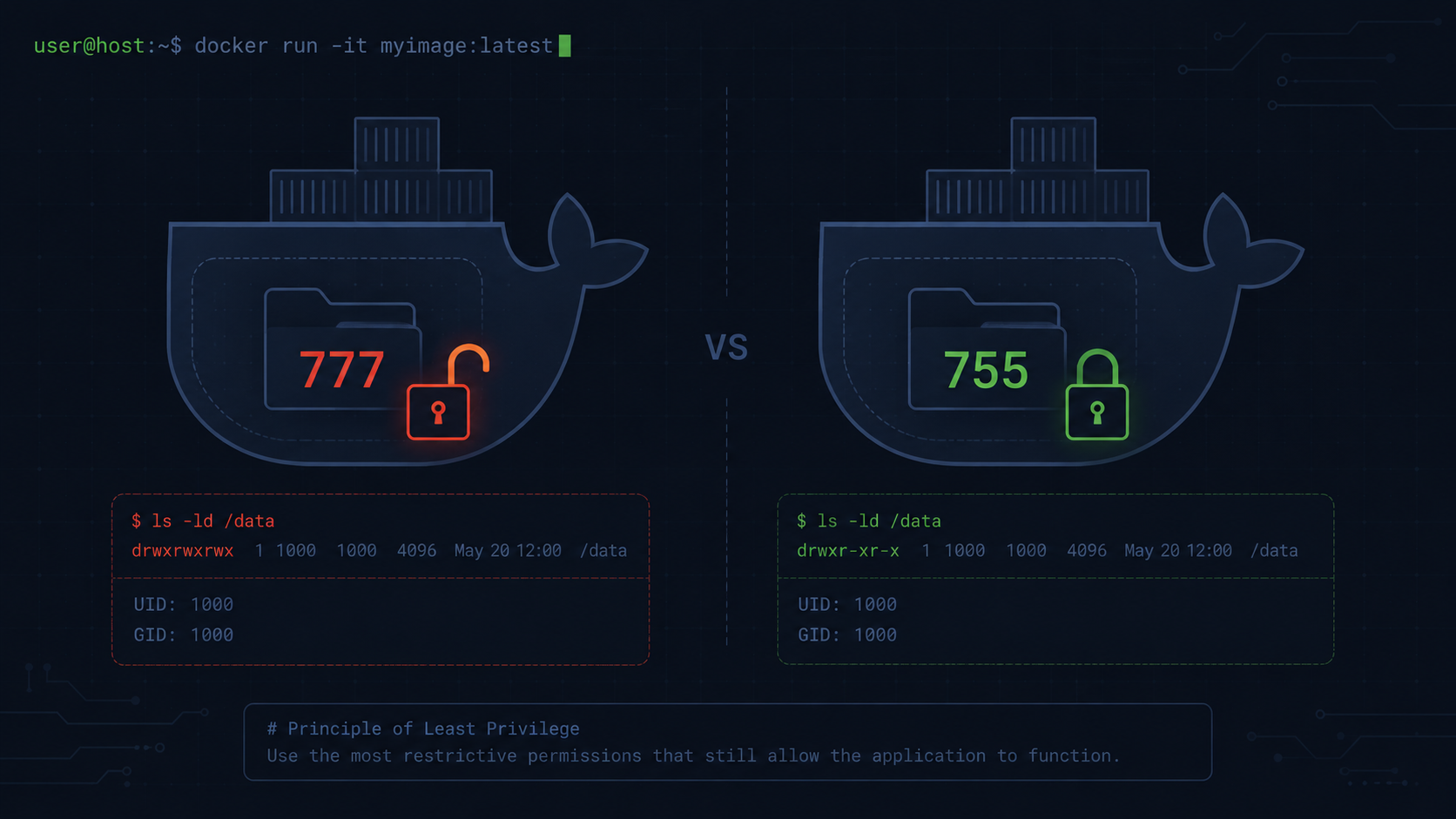
RUN chmod -R 777 /appIt works. That’s the problem. chmod 777 doesn’t fix the permission issue. It removes permissions as a concept from that directory entirely. Every user, every process, and every container sharing that filesystem can now read, write, and execute everything in it. The error goes away because the thing that was checking for permission problems is gone.
This makes the folder writable by everyone and anyone, which is a significant security vulnerability, especially for files exposed to the web. It’s best avoided.
What’s actually happening: UIDs, not usernames
The root cause of almost every permission denied error in Docker is a mismatch between two numbers that have nothing to do with the usernames you see in ls -la.
Linux, and macOS since it’s built on a similar foundation, doesn’t care about usernames. It cares about user IDs and group IDs.
When you bind mount a host directory into a container, for example with docker run -v ./data:/app/data, the files on disk keep their host ownership. If your host user is UID 1000, the default for the first user on most Linux and macOS systems, but the process inside the container runs as UID 999, or as root which is UID 0 depending on the image, then from the container’s perspective those files belong to some UID it doesn’t recognize and doesn’t have write access to.
$ docker exec mycontainer touch /app/data/file.txt
touch: cannot touch '/app/data/file.txt': Permission denied

$ docker exec mycontainer id
uid=1000(appuser) gid=1000(appgroup)

$ docker exec mycontainer ls -la /app/data
drwxr-xr-x  2 1001 1001  4096 Jun 10 09:00 .
The container runs as UID 1000. The directory is owned by UID 1001. Permission denied. chmod 777 fixes this by making the directory world writable, so it no longer matters who owns it, which also means it no longer matters who else can write to it.
The actual fix: match the UIDs
Once you know it’s a UID mismatch, there are three real fixes, in order of how often you’ll reach for each.
Match the container’s user to the host’s UID at build time. If you control the Dockerfile, build the image with an ARG for UID and GID and create the container user to match:
FROM ubuntu:22.04
ARG UID=1000
ARG GID=1000
RUN groupadd -g $GID appgroup && \
    useradd -u $UID -g $GID -m appuser
USER appuser
WORKDIR /home/appuser/app
Build with —build-arg UID=$(id -u) —build-arg GID=$(id -g) and the container’s user now matches your host user exactly. Files created by the container are owned by you on the host, and files you create on the host are writable by the container. No chmod needed.
This has a real limitation worth knowing about. It fails if the image is hard coded to run as a specific user. If the nginx image’s startup script requires it to be the nginx user, UID 82, to read a config file, and you force it to run as UID 1000, it might fail with a different error entirely.
If the base image’s entrypoint scripts assume a specific UID for their own internal logic, overriding it can break those scripts in a new way, so check the base image before assuming this approach is a drop in fix.
Use named volumes instead of bind mounts when you don’t need host access to the files. Named volumes are managed entirely by Docker, and they handle permissions automatically.
docker volume create mydata
docker run -v mydata:/app/data myimage
If you don’t actually need to edit those files from your host, because they’re application state, a database’s data directory, or a build cache, a named volume sidesteps the UID problem entirely since there’s no host side ownership to conflict with.
Change the host directory’s ownership to match the container. This is the reverse of the first option. Instead of changing the container’s user, you change who owns the files on the host.
sudo chown -R 1000:1000 ./dataThis is useful when you don’t control the image, so you can’t add a UID matching USER directive, and a named volume isn’t an option because you genuinely need host side access to the files.
SELinux adds another layer on Fedora, RHEL, and CentOS
If you’re on a SELinux enforcing distro, bind mounts can fail with permission errors even when the Unix permission bits and UIDs look correct, because SELinux labels are a separate access control system. Docker provides mount flags specifically for this.
# z relabels for sharing between multiple containers
docker run -v $(pwd)/data:/app/data:z myimage

# Z relabels for exclusive use by this container only
docker run -v $(pwd)/data:/app/data:Z myimage
If you’ve already ruled out UID mismatches and you’re still seeing permission denied on Fedora or RHEL, this is the next thing to check, and it’s a one character flag rather than a chmod.
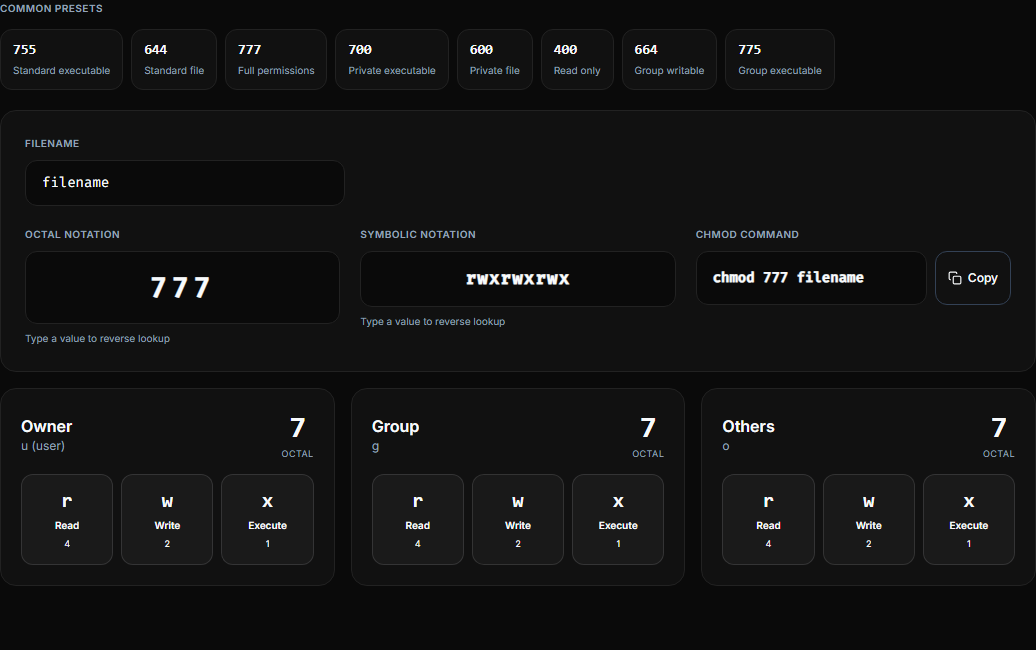
Try it yourself → chmod Calculator, which lets you calculate the minimal permission set your use case actually needs, with octal, symbolic, and visual output.
When 777 is almost defensible, and how to do less damage
Sometimes you’re in a throwaway dev container, it’s late in the day, and you genuinely don’t care about the security implications for the next ten minutes. Fine. But even then, avoid chmod 777 unless you’re in a hurry on a dev only container, since it’s bad practice in production, and use precise permissions like 755 or 700 instead.
If you must grant broad access without going to the extreme, chmod -R 775, which gives the owner and group full access while others get read and execute, or matching the directory to the container’s group rather than opening it to literally everyone, is a meaningfully smaller blast radius and costs you nothing extra to type.
The real test: would this survive a security review?
chmod 777 in a Dockerfile is the kind of thing that works in every environment, causes zero errors, and then becomes a finding in a security audit eighteen months later when someone asks why /app is world writable in production. At that point it’s not a five minute fix. It’s an investigation into what’s been writing to that directory, whether anything exploited it, and a deploy to change permissions on a system that’s been running with this assumption for a year and a half.
The cost of doing it right up front, whether that’s a UID matching Dockerfile, a named volume, or a one line chown, is genuinely smaller than the cost of finding and fixing it later.
Calculate the permission you actually need
If you’re past the UID matching question and just need to figure out the right octal or symbolic permission for a specific case, such as a shared group directory, an executable script, or a config file that should be read only, the chmod Calculator on opsbash converts between octal, symbolic, and visual permission formats, including the setuid, setgid, and sticky bits if you need those. It won’t fix a UID mismatch for you, but it will make sure that whatever permission you do set is the minimal one that solves the actual problem, not 777 because it was the first thing that worked.