 Buy me a Koffee
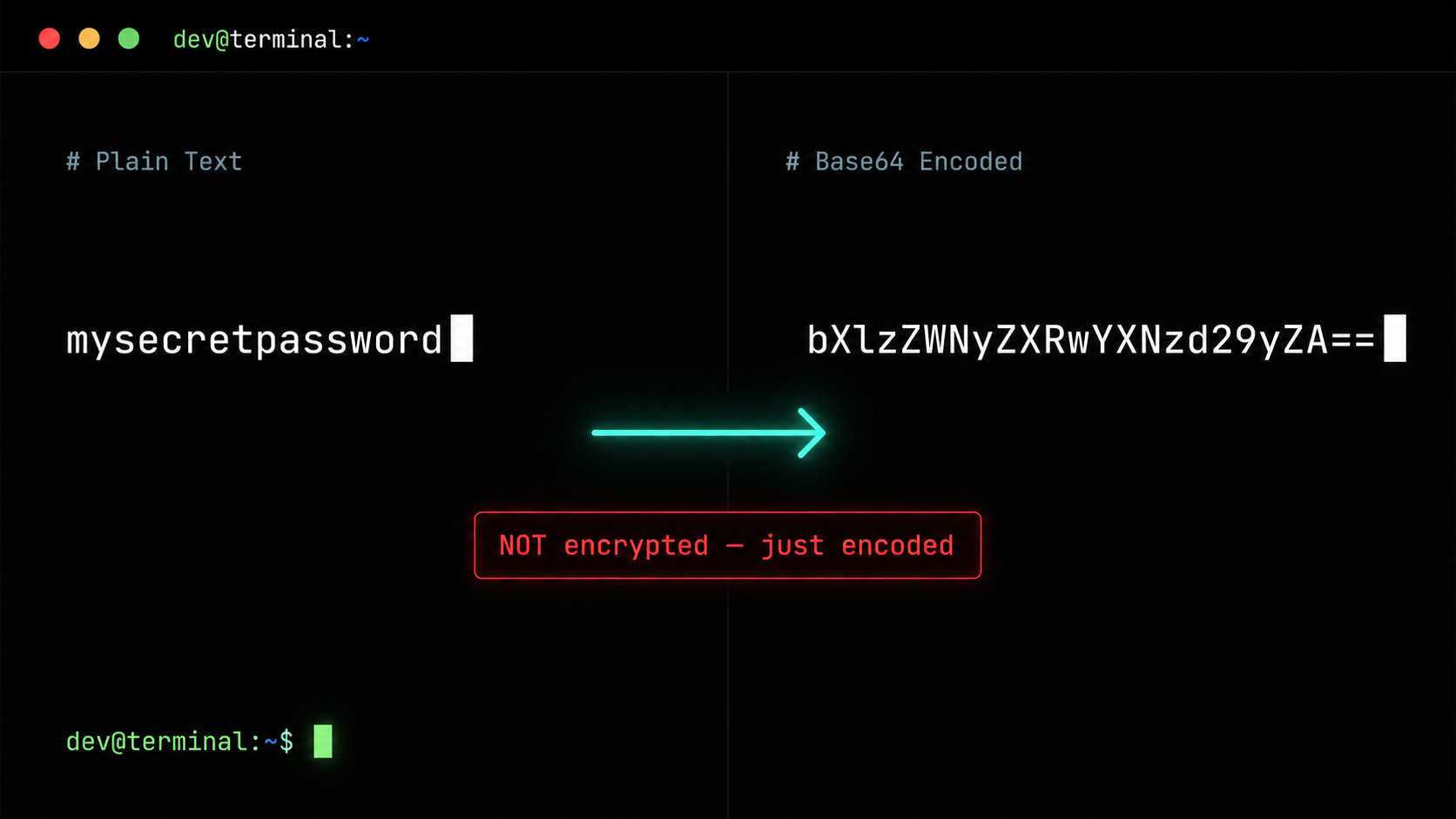
Every Kubernetes engineer has copy-pasted a command like this from a tutorial:
echo -n "mysecretpassword" | base64And gotten back something like bXlzZWNyZXRwYXNzd29yZA== and thought great, my secret is now safe.
It is not safe. Not even a little bit. And understanding why is one of the most important things you can learn about how Kubernetes actually works.
What Base64 Actually Is
Base64 is an encoding scheme. Not an encryption scheme. The difference matters enormously.
Encryption transforms data into something unreadable without a specific key. Without the key you cannot get the original data back. Base64 does none of this. Base64 converts binary data into a string of printable ASCII characters. Anyone who has the base64 string can decode it instantly with no key, no password, and no special knowledge. The transformation is completely reversible by anyone.
The 64 in the name refers to the 64 characters used in the encoding: uppercase A through Z, lowercase a through z, digits 0 through 9, plus the plus and forward slash symbols, with equals signs used for padding. Any sequence of bytes can be represented using only these 64 safe printable characters.
Why Kubernetes Uses Base64 for Secrets
If base64 provides no security then why does Kubernetes use it for Secret objects?
The answer has nothing to do with security. It has everything to do with data format compatibility.
Kubernetes Secrets are designed to store arbitrary binary data. TLS certificates contain binary bytes. Private keys contain binary bytes. Authentication tokens may contain binary bytes. If you try to store raw binary data directly in a YAML file you will run into problems because YAML has its own special characters and parsing rules. A null byte or an unescaped newline inside a YAML value causes parse errors that are difficult to debug.
Base64 solves this cleanly. Any binary data, regardless of what bytes it contains, becomes a safe printable string that survives YAML serialization and deserialization without corruption. The trade-off is human readability, but the gain is reliable storage of any data format.
This is why the official Kubernetes documentation is explicit about something that many tutorials gloss over: Secrets are not encrypted by default. They are base64 encoded and stored in etcd in a form that anyone with direct etcd access or the right kubectl permissions can read immediately.
The Three Formats You Will Encounter
Not all base64 looks the same. There are three variants you will see in DevOps workflows:
Standard base64 uses the plus sign for value 62 and forward slash for value 63. This is what base64 on the command line produces by default.
URL-safe base64 replaces the plus sign with a hyphen and the forward slash with an underscore. This variant exists because plus and forward slash have special meanings in URLs. JWTs use URL-safe base64 for their header and payload sections, which is why JWT content looks slightly different from standard base64.
Unpadded base64 removes the trailing equals signs that standard base64 uses for padding. Some systems, particularly those working with JWTs, omit the padding entirely.
When you are decoding something and getting garbage output, the first thing to check is whether you are using the right variant. Trying to decode URL-safe base64 with a standard decoder produces incorrect results without always throwing an error.
The Trailing Newline Bug That Burns Everyone Once
Here is the single most common base64 mistake in Kubernetes workflows. There are two ways to base64-encode a value on the command line:
echo "mysecretpassword" | base64And:
echo -n "mysecretpassword" | base64These produce different output. The first command encodes mysecretpassword followed by a newline character. The second encodes only mysecretpassword with no newline.
When Kubernetes decodes a Secret value it gets back exactly what was encoded. If you encoded with a trailing newline your application receives mysecretpassword\n instead of mysecretpassword. Depending on how your application handles the value this extra newline either causes a silent authentication failure, a database connection error, or gets trimmed automatically and works fine.
The inconsistency is what makes this bug hard to find. It works fine in your local testing if your application trims whitespace, but fails in production if a different library or configuration parser does not trim it. Always use echo -n when encoding values for Kubernetes Secrets.
Where Base64 Appears in DevOps Work
Beyond Kubernetes Secrets, base64 shows up in several other places that DevOps engineers encounter regularly.
JWT tokens are three base64-encoded sections separated by dots. The header describes the algorithm. The payload contains the claims like user ID, permissions, and expiry time. The signature is a cryptographic hash. The first two sections are URL-safe base64 encoded JSON objects, which means you can decode them without any key to inspect their contents. This is by design since JWTs are meant to be readable by the client, just not modifiable without the server’s secret key.
HTTP Basic Authentication encodes a username and password as username:password in standard base64 and sends it in an Authorization header. The encoding is purely for safe transmission in HTTP headers, not for security. HTTPS provides the actual security by encrypting the entire request including the header.
Docker registry authentication uses base64-encoded credentials in ~/.docker/config.json and in Kubernetes imagePullSecret objects. The same trailing newline caveat applies here too.
SSH public keys in authorized_keys files use base64 to encode the key data. The format is the key type followed by the base64-encoded key data followed by a comment.
Real Security for Kubernetes Secrets
Since base64 provides no confidentiality, production Kubernetes environments need additional measures to actually protect sensitive data.
Encryption at rest means configuring the Kubernetes API server to encrypt Secret objects before writing them to etcd using an EncryptionConfiguration resource. Without this anyone who can read etcd directly, which includes anyone with direct cluster access, can read every Secret in plain text after decoding the base64.
Sealed Secrets is a tool from Bitnami that lets you encrypt Secrets using a public key so that only the cluster’s Sealed Secrets controller can decrypt them. The encrypted form can be safely committed to git because it requires the private key to decrypt, not just a base64 decoder.
External Secrets Operator integrates Kubernetes with external secret management systems like AWS Secrets Manager, HashiCorp Vault, and Google Secret Manager. Secret values never live in etcd at all. They are fetched from the external system at runtime and injected into pods as environment variables or mounted files.
For most teams getting started the practical advice is simple: enable RBAC to restrict who can run kubectl get secret, enable audit logging so you know when secrets are accessed, and consider Sealed Secrets or an external secrets operator for anything that touches production credentials.
Frequently Asked Questions
Is base64 encoding the same as encryption?
No. Base64 is encoding, not encryption. It is completely reversible by anyone without any key or password. Never rely on base64 as a security measure for sensitive data.
Why does my application get authentication errors after I create a Kubernetes Secret?
The most likely cause is a trailing newline in the encoded value. Re-encode using echo -n instead of echo to exclude the trailing newline before base64 encoding.
What is the difference between standard base64 and URL-safe base64?
URL-safe base64 replaces the plus sign with a hyphen and the forward slash with an underscore so the encoded string can be safely used in URLs and HTTP headers. JWTs use URL-safe base64. Kubernetes Secrets use standard base64.
How do I decode a base64 string on the command line?
Use echo "encodedstring" | base64 -d on Linux or echo "encodedstring" | base64 --decode on macOS. For a Kubernetes Secret value use kubectl get secret mysecret -o jsonpath='{.data.mykey}' | base64 -d.
How do I decode a JWT token?
Split the JWT on the dots to get three parts. Take the second part which is the payload and decode it with echo "payload" | base64 -d. You may need to add padding equals signs if the string length is not a multiple of 4. The OpsBash Base64 tool handles this automatically.